![25_PMX Logo.jpg]](https://help.portfoliometrix.com/hs-fs/hubfs/25_PMX%20Logo.jpg?height=40&name=25_PMX%20Logo.jpg)
Important: Explore and Compare are separate settings. You can enable Explore only, Compare only, or both, depending on the adviser firm's needs and configuration.
Decide whether the company needs Explore, Compare, or both modules.
Link to procees doc - Visualise Instruction Sheet.docx
Search the following adviser company settings:
- WExWebScenarioVisualizationInPMXEdgeEnabled - This is to indicate whether or not visualising Wealth Explorer scenarios in PMXEDGE is enabled.
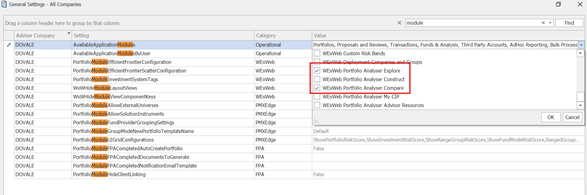
- AvailableApplicationModules – This is to choose which visualise you want the company to have access to Explore, Compare, or both modules.
- WxWHideModuleViewComponentKeys - PortfolioAnalyserTemplate|*|*|*|ProviderAllocationChart
- PortfolioAnalyserDiscreteInterpolationConfiguration - Discrete:*;Interpolated:PMX_SA_R28_MACB|PMX_SA_DISC_MACB
- Deploy the relevant outputs – Deploy Portfolio Explore Report and Portfolio Compare Report
Options:True or False options
Options: WExWeb Portfolio Analyser Explore, WExWeb Portfolio Analyser Compare
Visual Instructions:
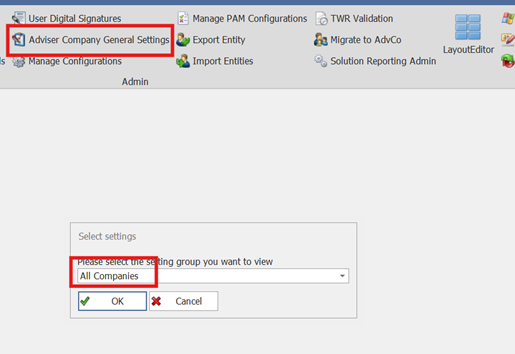
- Open Wex Desk and go to Adviser Company General Settings then select all companies.
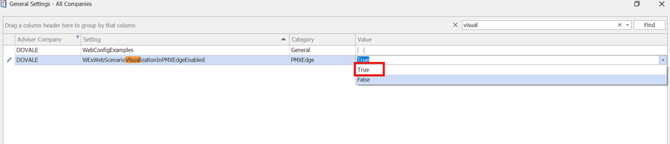
- WExWebScenarioVisualizationInPMXEdgeEnabled – Select True
- AvailableApplicationModules: Tick the applicable options:
WExWeb Portfolio Analyser Explore - Publish the company setting changes.
- Deploy the relevant outputs:
Click Manage Configurations and Output templates as indicated below: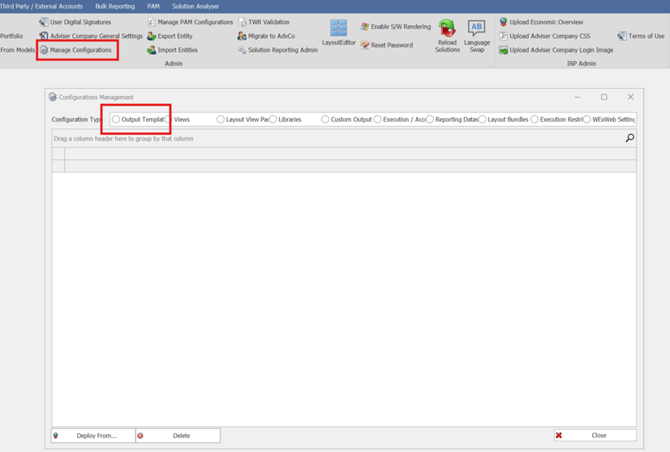
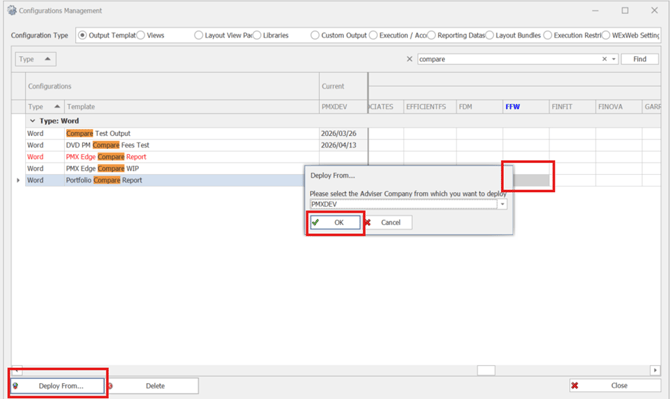
- Search the output to deploy and then scroll to the Adv. Company then select and deploy from PMXDev
WExWeb Portfolio Analyser Compare
- Open WealthExplorer and select the relevant Centralised Investment Proposition (CIP).
- Select an existing client investment, CIP portfolio, proposed investment, or saved scenario.
- Check the action column next to the investment for the Explore and/or Compare icons.
- Open the selected investment and check that the Explore or Compare actions are also available from the investment view.
- Confirm that Explore opens the selected investment for analysis and that Compare uses it as the reference investment.